QR Code Event Check-in: How to Get Every Guest Through Fast
IQvent AI Team6 min read
In this article
QR code event check-in works by sending every guest a unique QR pass before the event and scanning it at the door, which marks that guest as arrived on a live guest list. It replaces hunting for names on a printed sheet with a quick, contactless scan, and gives you an accurate arrival count as people walk in.
It sounds simple, and mostly it is. The difference between a smooth door and a long queue comes down to a few choices: what you scan with, how many lanes you open, what happens when the network drops, and how you handle passes that will not scan.
Key takeaways
- QR check-in gives every guest a unique pass and marks them arrived with one scan.
- Phones suit small events; dedicated scanners are faster and sturdier for big crowds.
- Plan lanes for your peak arrival window, using scan speeds timed at your own rehearsal.
- Choose a check-in app that keeps scanning offline and syncs when the network returns.
- Plan for guests who cannot find their pass: resend on WhatsApp and run a help desk.
How does QR code event check-in work?
- The guest registers. Their details create a record in your event software.
- A pass is issued. Once the guest is confirmed or approved, the system creates a unique QR code linked to that record and sends it by email or WhatsApp.
- The guest arrives and shows the pass. Usually on their phone, sometimes on paper.
- Staff scan it. The check-in app reads the code, finds the record and shows the guest's name and type (delegate, speaker, VIP) so staff can confirm.
- The record updates. The guest is marked arrived, a second scan of the same pass is flagged, and the live arrival count goes up by one.
- A badge is handed over. Either printed on the spot or picked from a pre-printed set.
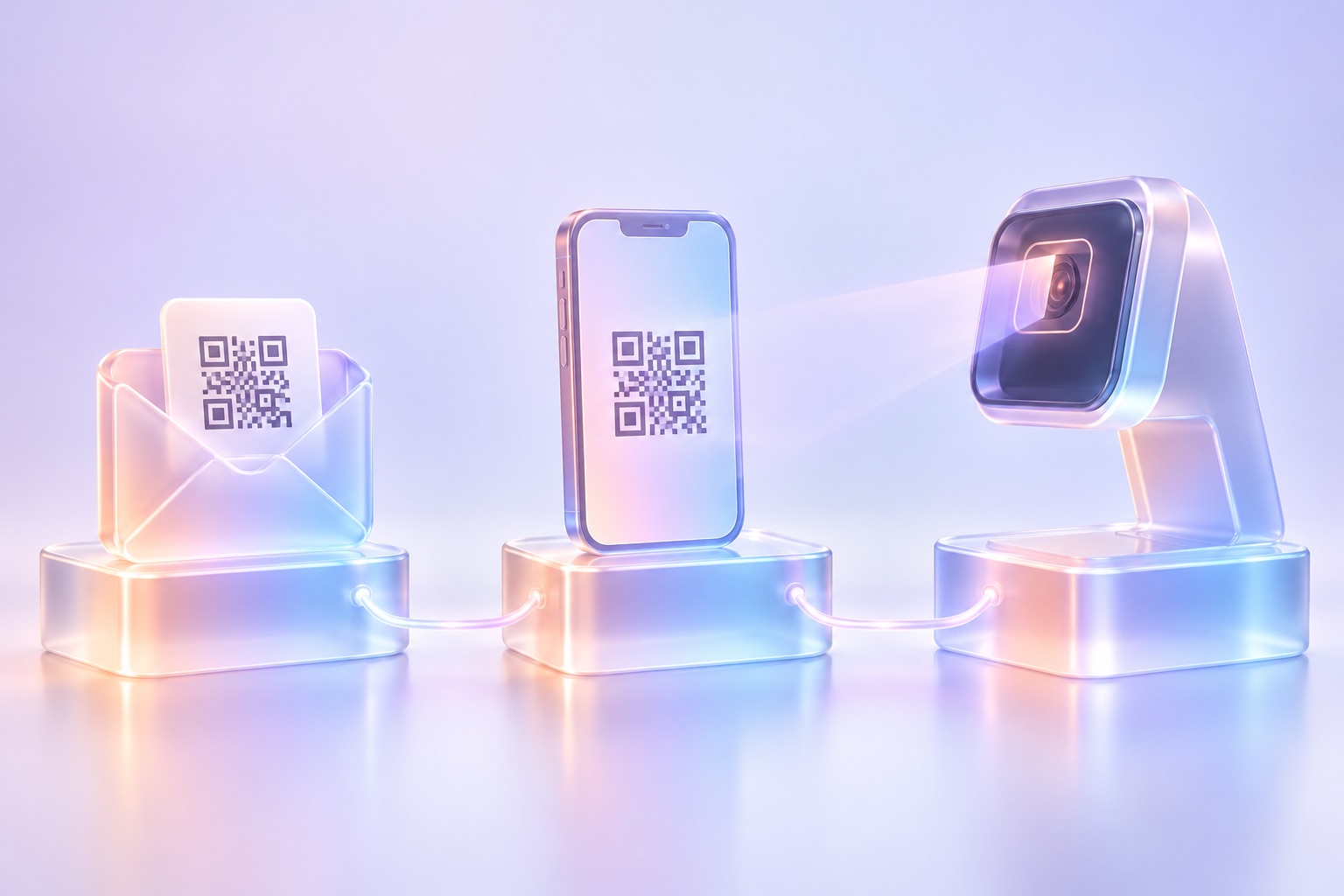
The QR code itself only carries an identifier. The useful information lives in the system, which is why the same pass can be scanned in more than one place.
Sessions and booths
Once guests have a pass, you can scan it again inside the event. At session doors, scanning shows who attended which talk and helps you watch room capacity. At expo booths, exhibitors scan visitors to capture leads instead of collecting business cards.
Should you check guests in with phones or dedicated scanners?
Both work. The right choice depends on guest numbers, how quickly people arrive, and how long the devices need to last.
| Factor | Phone with a check-in app | Dedicated QR scanner |
|---|---|---|
| Set-up | Install, log in, ready | Devices need delivering and setting up |
| Speed | Good, depends on camera and light | Built for fast, repeated scans |
| Durability | Batteries drain, screens crack | Made for long shifts at the door |
| Glare and dim light | Can struggle | Usually copes better |
| Best for | Small events, session doors, roaming staff | Large crowds and main entrances |
A mix is common: scanners at the main entrance, phones at session rooms and with staff walking the queue.
How do you plan the check-in queue?
Queues are about the arrival peak, not the total guest count. Most guests arrive in a short window before the first session, so plan for that window.

Time a few dozen scans at your rehearsal, including the badge handover, to see how many guests one lane handles in a minute. Then do the sum. Say you expect 420 guests, most of them in the half-hour before the keynote, and your rehearsal shows one lane handles six guests a minute. One lane clears 180 guests in that half-hour, so you need three lanes, plus a separate help desk.
A few habits keep lines moving:
- Split off problems: send anyone without a working pass to the help desk so they do not hold up the scanning lanes.
- Signpost early: put signs before the desk asking guests to open their pass.
- Give VIPs and speakers their own lane: it keeps them moving and protects the main line.
- Walk the queue: a staff member with a phone can scan guests while they wait.
- Staff for the peak: put most of your people on the door in that first window, then move them elsewhere.
What usually goes wrong at QR check-in, and how do you fix it?
The venue network drops
Venue Wi-Fi often struggles once hundreds of phones arrive, and mobile signal can be weak in basements and large halls. Pick an event check-in app that keeps scanning offline and syncs when the network is back. Test it before the event: put a device in airplane mode, scan a few test passes, reconnect and check the scans appear.
Guests cannot find their pass
This is a frequent hold-up. Emails land in promotions folders or get buried. Sending passes on WhatsApp as well as email helps, and so does a reminder with the pass the day before. At the help desk, staff should be able to look a guest up by name or phone number and check them in by hand.
The code will not scan
Low screen brightness, cracked screens, glare and crumpled printouts are the usual causes. Ask the guest to turn up brightness and hold the phone steady a short distance from the scanner. If that fails, use manual lookup.
Duplicate or shared passes
If a pass has been forwarded, the second scan shows it as already checked in. Give staff a simple rule: check the name against ID, and send unclear cases to the help desk rather than arguing in the lane.
Walk-ins and last-minute changes
Decide before the day whether walk-ins are allowed and who approves them. Register them at the help desk so they get a record and a pass like everyone else.
Devices run out of battery
Charge everything the night before, bring power banks and extension boards, and keep one spare device logged in and ready.
How IQvent AI handles check-in
With IQvent AI, every guest gets a QR pass by email or WhatsApp once they register or are approved. On the free plan, your staff check guests in with a phone; bigger events get dedicated hardware QR scanners at the door. One scan works at the door, a session or a booth, so the same pass covers entry, session attendance and exhibitor lead capture.
Check-in keeps scanning offline and syncs when the network is back, so a Wi-Fi drop does not stop the line. Badges are printed live at check-in or pre-printed and ready in advance, and the live arrivals dashboard shows the arrival count climbing as each guest is scanned. Events with fewer than 150 guests are free; see pricing or book a demo. Before the day, run through our event check-in checklist, and read badge printing: live vs pre-printed to choose your badge approach.
Frequently asked questions
How does QR code event check-in work?
Each guest receives a unique QR pass by email or WhatsApp after registering. At the event, staff scan the pass with a phone or a dedicated scanner, which finds the guest's record, marks them as arrived and updates the live arrival count. A second scan of the same pass is flagged, which stops one pass being used twice.
Can I use my phone as an event check-in app?
Yes. Most QR check-in systems let staff scan passes with an ordinary smartphone, which works well for small events, session doors and staff walking the queue. For large crowds at a main entrance, dedicated scanners are faster and hold up better over a long shift.
Does QR check-in work without internet?
It depends on the software. Choose a check-in app that keeps scanning offline and syncs when the connection returns, and test it before the event by putting a device in airplane mode. Without offline support, a Wi-Fi drop can stop your door completely.
What should I do if a guest's QR code will not scan?
Ask the guest to turn up screen brightness and hold the phone steady, then try again. If it still fails, send them to the help desk, where staff can look them up by name or phone number and check them in by hand. Keeping this desk separate means the main lanes keep moving.
Is QR code check-in contactless?
Yes. Guests show the pass on their own phone and staff scan it from a short distance, so nothing needs to change hands except the badge. It also removes the shared pens and paper sign-in sheets of a traditional desk.